Receipts Manual
Receipts groups receipts into accounts. An account may represent a client, project, trip, business, or any other grouping. A default account is included, new accounts may be added when editing a receipt or in Settings. Accounts may be active or inactive, active accounts appear black while inactive accounts are grey. Active accounts appear first in the accounts list (under the Receipts tab) followed by inactive accounts. Accounts may be filtered by their active state in the Overview and Reports tabs.

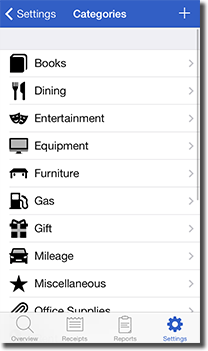
Categories are groups of receipts within accounts. Receipts includes 16 categories by default, others may be added when editing a receipt or in Settings. Subcategories may be created by setting a category's parent.

Receipts saves up to three totals for each receipt. These include the receipt total (in the receipt's unit), the account total, and the home currency total. The account and home currency totals are only displayed if the account or home currency unit is different from the receipt unit. The receipt unit is either a currency or a mileage unit. Each account may have a currency set that is different from the home currency. By default, the home currency is set to the current locale's currency. This may be changed in Settings. Default values for all units are included with Receipts and updated with each app update. Values may be manually input under Units in the Settings tab or updated by tapping the refresh button (currency exchange rates are provided by WebServiceX).

Each receipt is assigned a unique global number or a unique account number (depending on the Global Receipt Numbers setting). This number may be used to identify receipts or other related documents for each entry in Receipts. Receipts may be active or inactive. Active receipts appear black in the receipts list while inactive receipts are grey. Receipts may be filtered by their active state in the Overview, Receipts, and Reports tabs. Receipts can be set up to be repeating with a time interval and an optional end date. If a receipt is a repeating receipt, new receipts are automatically added when the time interval has passed since the last receipt in the series. Repeats become inactive when the end date has passed (if set). Repeats are deleted when all receipts related to the repeat are deleted. When editing receipts that are part of a repeating series, changes may be applied to this receipt only, all future receipts (including this receipt), or all related receipts. When deleting a repeating receipt, either only this receipt may be deleted or all related receipts as well.

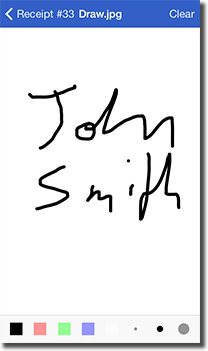
Each receipt may contain multiple photos, voice memos, and other attachments. These are displayed in a tray that appears at the bottom of a receipt (scrollable horizontally). Photos may be added from an existing photo album or captured using the device camera(s). Receipts supports photo editing in the photo view. Voice memos may also be included to capture short voice notes. Attachments of any file type may be added from other apps. Receipts supports previews of many common file types. Tap a photo or attachment to see a preview. Attachments may also be opened in other apps or printed.

Receipts consists of four tabs along the bottom of the screen.

Overview
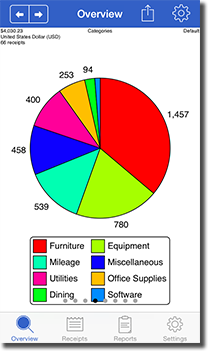
The Overview tab helps you keep track of spending. Up to eight graphs are displayed in the view (depending on the settings). Tap the left or right arrows at the top left of the view, tap the left or right side of the page control dots at the bottom, or use two fingers to swipe left or right to scroll through the various graphs. Zoom in or out by pinching the screen in or out.

Graphs

Two graphs each are included for spending by account, category, and unit (currency/mileage). If an account, category, or unit is selected in the settings, those graphs are omitted. The next graph shows spending over time. This graph also displays a straight white line that represents the average spending for the given time interval. Finally, if there are custom currency fields, a graph showing the totals for each custom currency field is included.

Email, Print, or App

Tap the action button on the top right to email, print, or open the graph in another app. Select to include the current graph or all graphs in the PDF. If email is selected, the Default Email address is used for the To address (if set).

Settings

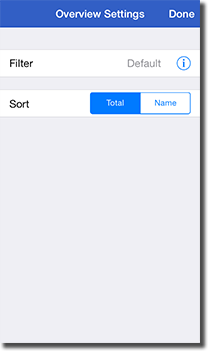
Tap the settings button on the top right to filter the data used in the graphs. Select an account, category, unit, or active state to limit the types of receipts to include. Select an interval to restrict receipts to a preset time interval or enter custom dates. Finally, select how to sort the data, either by total (descending) or name.

Receipts
The Receipts tab allows you to add, edit, and view your receipts. It also provides totals for each account and category. There are four main views including an account list view, category list view, receipt list view, and the receipt view. Tap the + button from any of the list views to add a new receipt.

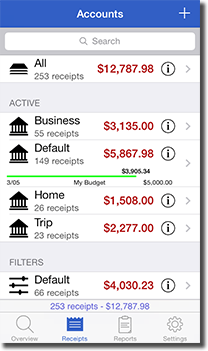
Accounts

The top-level view displays a list of accounts. Active accounts are listed first followed by inactive accounts. Scroll to the top of the list to reveal the search bar. Tap an account to view the category list for that account. If the account has a budget set, the budget bar is displayed. Tap the info button on the right side to see the account details and totals. Tap Edit to edit the account details such as the name, description, currency, budget, starting receipt number, and active state or to delete the account receipt attachments, receipts, or the account itself.

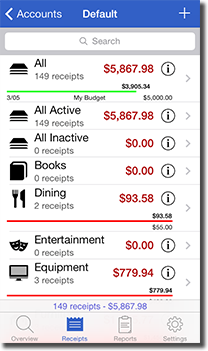
Categories

The category list view displays a list of categories. Scroll to the top of the list to reveal the search bar. Tap a category to view a list of receipts for that category. If the account has a budget set and the budget includes the category, a budget bar is displayed. Tap the info button to see the category details and totals. Tap Edit to edit the category name and set a parent category.

Receipts

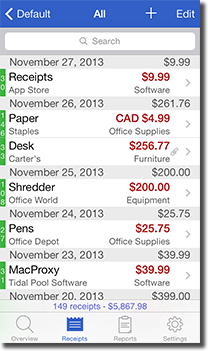
The receipt list view displays receipts sorted by date (sorted by newest or oldest depending on settings). The receipts are grouped by day with the totals for each day included in the header (converted to the account currency). Active receipts are displayed in black while inactive receipts are grey. The receipt number is displayed on the left of each receipt. This number is either a unique global or account receipt number. Expenses may be displayed as either positive or negative values (depending on settings). Tap a receipt to view or edit its details. Scroll to the top of the list to reveal the search bar. To delete a receipt, swipe the receipt in the list and tap the Delete button. Tap the Edit button to mass select receipts for deletion, changing the active state, duplicate, move to a new account or category, or export.

Receipt

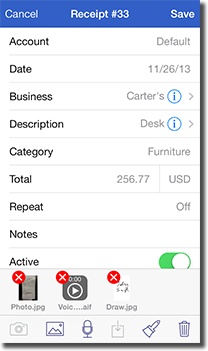
The receipt view displays a receipt's details. All the standard receipt fields and any custom user fields are displayed in the order specified in Settings. Tap the email button to generate an email with the receipt details including attachments. If a receipt is part of a repeat, tap the blue arrow next to the Repeat field to see the related receipts. Tap an attachment in the tray at the bottom to preview it.

Tap the Edit button to edit the receipt. Tap a field to edit its value. Text fields (such as Business, Description, and Notes) have a blue arrow on the right for selecting previous values. To enter a new value for these fields, tap anywhere else in the field.

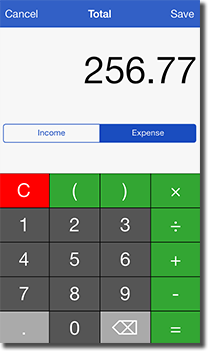
Tap the Total field to set the total amount for the receipt. This displays the calculator where the total amount may either be set directly or calculated. Tap the Income or Expense buttons to specify the value type. The receipt unit is displayed next to the total value. Tap the unit to select the receipt unit. Mileage units are listed at the top (kilometres and miles) followed by a list of currency favourites and then all other currencies. If the receipt unit is different from the account currency, a second total field is displayed with the account currency value. The account total is automatically calculated when the receipt total is updated but may be overridden with a custom value. If the receipt and account units are different from the home currency, a third total field will appear with the home currency value.

Tap the Repeat field to enable receipt repeating and set the repeat interval. The repeat end date is displayed on the right in the field. By default, repeating receipts never end. Tap the end date to clear or set a specific end date.

Tap the Notes field to set a receipt note.

Attachments include photos, voice memos, and other files. These are displayed in the tray at the bottom of the view. Scroll the view by swiping left or right. Delete an item by tapping the X button on the top left corner. Reorder the attachments by tapping and holding the attachment, and then dragging the attachment to a new position.

To capture a new photo, tap the camera button on the toolbar at the bottom. To add an existing photo, tap the picture icon next to the camera. The photo view supports photo editing. Tap the rotate/scale or crop buttons to edit the photo. Tap the adjustments button to modify the photo brightness, contrast, and saturation. Tap the camera button to retake the photo or the picture icon to select a different album image. Tap the trash button to delete the photo. Tap the Revert button to restore the previously saved photo. Note that this button is disabled until the photo has been saved.

To record a voice memo, tap the microphone button. Tap the record button to begin recording and the pause button to pause recording. Double tap the record/pause button to end recording. When playing back a voice memo, double tap the play/pause button to restart the playback from the beginning.

To add an attachment to a receipt, launch an app that supports opening files in other apps, find the attachment, and tap and hold the attachment until the Open sheet appears. Select Receipts from the list of apps that support opening files. If a receipt is currently being edited, the attachment will be added to it. Otherwise, Receipts will display an alert where the attachment may be added to either a new or existing receipt. Receipts supports many common formats for viewing attachments. Tap the attachment and then the function menu on the top right to open the attachment in another app or print the attachment. If the attachment is an unsupported format, an open menu will appear to open the attachment in another app.

Tap the delete button to delete the receipt.

Reports
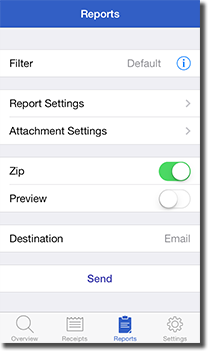
The Reports tab is used to create customized reports of your data. Generate reports from filtered or all receipts and send them to a variety of destinations (including web services).

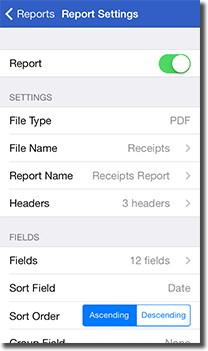
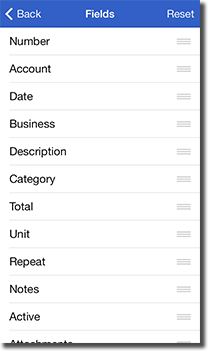
Select an account, category, which fields to include, and the active state. Fields may be enabled or disabled by tapping the field name. They may also be reordered by dragging the icon on the right of each field. Next select the time interval for receipts to include in the report.

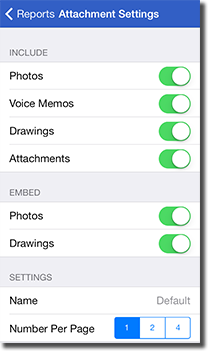
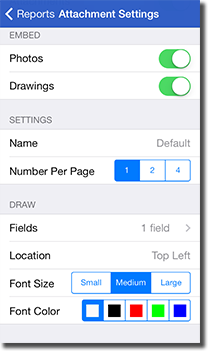
Select what to include by enabling or disabling the Reports, Photos, Voice Memos, and Attachments switches. If enabled, select Embed Photos to embed photos in the report itself (PDF reports only).

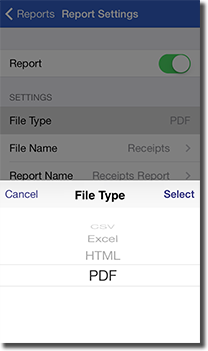
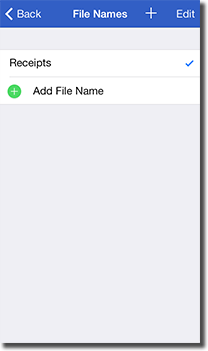
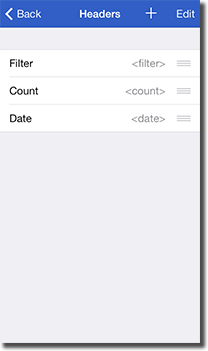
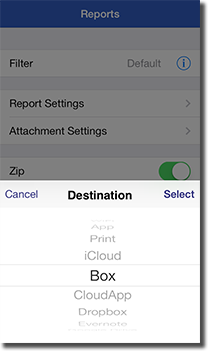
Next select the File Type. CSV (comma separated value) files are supported by almost all spreadsheets (and many other finance apps). Excel files (.xlsx format) include links to attachments making it easy to find related media. HTML files also include links to attachments and may be viewed in any browser. PDF files are generally read-only and may (optionally) include embedded photos. The File Name setting allows a custom file name to be selected for the report. Enter a list of file names for various reports and then select the file name to use when generating a report. The Report Name is the name included in the report itself. Similar to the file name setting, a list of report names may be entered. Select the report name from the list when creating a new report. The Headers setting allows you to include custom header lines at the top of the report. Select which items to include in the report by tapping them (faded items are not included in the report). Header items may be reordered. Three special keywords are included that are replaced with calculated values. These include <interval> (represents the selected report date interval), <count> (the receipt count), and <date> (the current date). The Attachment Name setting allows customization of the file names for attachments. The default prepends the account name (if global receipt numbers are not used). The Date option prepends the receipt date, Account prepends the receipt account name (if it is not already included), Category prepends the receipt category name, and Account/Category prepends the receipt account and category. The Zip setting specifies whether or not to zip the report, photo, voice memo, and attachment files into one file. Finally the Destination setting specifies where to send the resulting reports and attachments. Note that the above settings may not be available depending on the selected destination. To generate the reports and send it to its destination, tap the Send button at the bottom. Note that all report settings are saved including which fields to include and their order.

Up to four reports are created depending on the receipts included:

  • Receipts - lists all receipts by date (always created)
  • ReceiptsByAccount - lists receipts by account (only created if there are multiple accounts)
  • ReceiptsByCategory - lists receipts by category (only created if there are multiple categories)
  • ReceiptsByUnit - lists receipts by unit (only created if there are multiple units)

Email

An email composer view is displayed with the attached report files and any attachments. The message may be edited before being sent. If set, the Default Email address is used for the To address. Note that most email providers limit email sizes to 5-10 MB. Receipts will display an alert if the approximate email size is 5 MB or more.

iTunes File Sharing

Use iTunes File Sharing to quickly and easily transfer reports to your computer. Once the report has been copied to the Receipts Documents folder, open iTunes and select the device. Next select the Apps tab and then select Receipts from the apps listed below File Sharing. Drag the report to your desktop or select the report and click Save To... to specify the destination on your computer. Once the report has been copied, delete it from your device by selecting it and then pressing the Delete key. Receipts does not delete reports generated using this destination.

WiFi

To send via WiFi, both the device and computer must be connected to the same WiFi network. To connect, enter the displayed URL in a browser on your computer and download the report files and any attachments to the desktop.

App

Reports may be opened in other apps that support the selected report file type (or zip files, if the report is zipped). Note that attachments may not be included unless zip is enabled.

Print

Printing reports requires a compatible AirPrint printer. Note that receipt photos are only included if the embed photos option is selected.

iCloud

Reports may be uploaded to iCloud. Log into iCloud using the Settings app. Note that reports uploaded to iCloud are not accessible from other apps. A Mac is required to view reports uploaded to iCloud.

Learn More about iCloud
Sign Up for an iCloud Account

Box

Enter account details (including the default folder to use) under Settings or enter them when prompted. The reports and attachments are uploaded to your Box account to a new folder. You can learn more or sign up for a free Box account here:

Learn More about Box
Sign Up for a Box Account

CloudApp

Enter account details under Settings or enter them when prompted. The reports and attachments are zipped and then uploaded to your CloudApp account. You can learn more or sign up for a free CloudApp account here:

Learn More about CloudApp
Sign Up for a CloudApp Account

Dropbox

Enter account details (including the default folder to use) under Settings or enter them when prompted. The reports and attachments are uploaded to your Dropbox account to a new folder. You can learn more or sign up for a free Dropbox account here:

Learn More about Dropbox
Sign Up for a Dropbox Account

Evernote

Evernote performs OCR on receipt photos (and some attachments) and allows you to search for receipts by photo/attachment content. Enter account details (including the Notebook to use) under Settings or enter them when prompted. The report along with attachments are uploaded to your Evernote account as a new note to the specified notebook. You can learn more or sign up for a free Evernote account here:

Learn More about Evernote
Sign Up for an Evernote Account

Google Drive

Enter account details (including the default folder to use) under Settings or enter them when prompted. The reports and attachments are uploaded to your Google Drive account to a new folder. You can learn more or sign up for a free Google Drive account here:

Learn More about Google Drive
Sign Up for a Google Drive Account

Settings
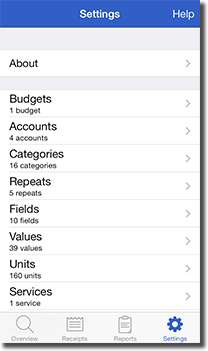
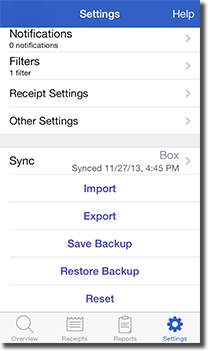
The Settings tab allows you to manage general and receipt settings, set up syncing, import/export data, and save/restore backups.

General

Tap About to view app info, statistics, contact details, or to write an app review. The Store section (Receipts only) displays a list of upgrades available for purchase. Purchase the Pro upgrade to allow an unlimited number of receipts to be added. Tap the Restore Previous Purchases button to restore any previous upgrades you have purchased. Note that you are only charged once for an upgrade.

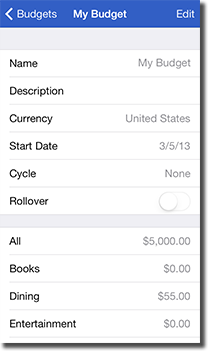
Tap Budgets to add, edit, or delete budgets. All budgets must include a start date and may optionally include a cycle. If a cycle is set, the budget amounts may be rolled over to the next budget period by enabling the Rollover switch. Each budget includes All and a list of categories. Set the budgeted values for each category of interest. Note that budgets may be assigned to multiple accounts. If an account has a budget assigned to it, a budget bar will appear in the account under the Receipts tab. Each account category will also include a budget bar that displays how much of the budget has been used for that category. The All category item for an account displays the budget start date or account period (if applicable), budget name, and the current total (top in bold) and budgeted total (bottom).

Tap Accounts to add, edit, or delete accounts. All account receipt attachments or all account receipts may be deleted. Deleting an account will delete all of its receipts and attachments. Each account has a name, description, currency, budget, starting receipt number, and active switch. If the account currency is different from the home currency, each receipt will include a separate total field for the account currency. Selecting a budget will add a budget bar in the accounts list view under the Receipts tab. Also, a budget bar is included for each account category that has a budget value assigned to it (as well as the All category item). The starting receipt number is the minimum number assigned to new receipts and is only used if the Global Receipt Numbers setting is disabled.

Tap Categories to add, edit, or delete categories. Subcategories are created by assigning a parent category to a category. An unlimited number of subcategories may be created. Deleting a category moves all receipts from that category to the None category (which can not be deleted). Tap a category to see a summary of the category receipts for all accounts.

Tap Repeats to see a list of all repeating receipts. The first section displays active repeats which continue to add new receipts. The next section shows inactive repeats which no longer generate new receipts. Delete the repeat by tapping the - button on the left. Delete either the repeat and receipts or only the repeat itself (leaving all current receipts intact). Tap a repeat to see a list of receipts it contains.

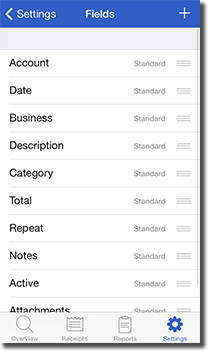
Tap Fields to add, edit, or delete receipt fields. Reorder fields by dragging the icon on the far right of each field to a new location. Changing the field order changes the layout of the receipt view. Note that Standard fields can not be deleted although they may be renamed and reordered. Nine types of custom fields may be added including currency, date, list, number, percent, percent total, switch, tags, and text. The currency field always uses the same unit as the total unit for a receipt. List and tag fields contain a list of user items that can be added by tapping the blue button on the right of the field. Tag fields are different from list fields since they may have zero or more items selected while lists always have only one item selected. Percent total fields automatically set their value to a percent of the total value. This value is calculated when the receipt total is modified. Tap the blue arrow to change the percentage to use and enable the Included in Total switch if the value is already included in the receipt total. Switch fields support an on or off state and are included with values 1 or 0 in reports. Deleting a field will also delete all receipt data for that field.

Tap Values to see a list of textual fields that contain previous values. Tap the + button to add a new value. Tap an existing value to change it. Delete a value by tapping the - button next to it. Tap the Reset button to reset all values given the current receipt values or clear all values for the field. If the Separate Account Values option is enabled, field values are saved by account.

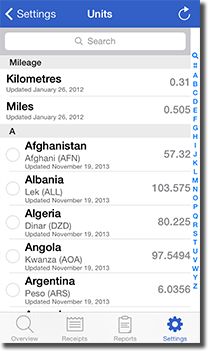
Tap Units to manage mileage and currency exchange rates. For mileage, tap either Kilometres or Miles to set the amount per kilometre or mile in the home currency. For currencies, tap the currency and set the exchange rate relative to your home currency. To download the latest currency exchange rates, tap the refresh button on the top right of the view (currency exchange rates are provided by WebserviceX). To save a favourite currency, tap the circle to the left of the currency. Favourite currencies appear at the top of the Units list in the receipt view. By default, Australia, Canada, Europe (Euro), Great Britain, Japan, Switzerland, and the United States are included as favourites.

The Services section is used to save account details for Box, CloudApp, Dropbox, Evernote, and Google Drive services. It is used for reports, backup, and sync features (if supported). The default folder can also be set for Box, Dropbox, and Google Drive accounts. The default notebook can be set for Evernote accounts. New folders (or notebooks) may also be created. Tap Logout to clear the account details. New accounts may also be created here for each service.

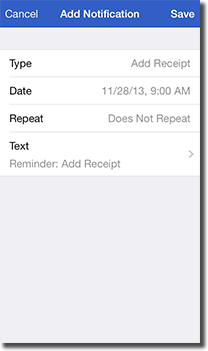
The Notifications view allows system reminders to be set up. Notifications for adding new receipts, saving a backup, and sending a report may be added. Select the date, repeat period, and notification text. Notifications are displayed even if Receipts is not running.

Select Global Budget to assign a budget that applies to all accounts. If a budget is selected, a budget bar appears in the All account (and any account categories).

Tap Show Future Repeat Receipts to select how far into the future to show repeat receipts. By default, this setting is disabled and repeat receipts are added on the receipt date.

The Separate Account Values option specifies whether or not to separate textual values by account. If enabled, each field's values are saved separately for each account. If disabled, all field values are saved independent of the account.

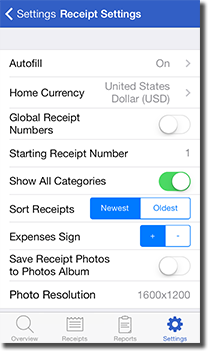
Tap Home Currency to set the local currency. If a receipt has a unit that is different from the home currency, an extra total field is included with the home currency total value.

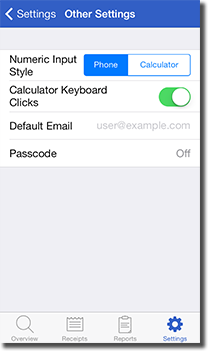
The Numeric Input Style setting sets the style of numeric keyboard to use throughout Receipts. The Phone style lays out the numeric keyboard similar to a phone keypad with numbers incrementing from the top. The Calculator style is the opposite with numbers displayed similar to a calculator.

Set the Calculator Keyboard Clicks setting to enable keyboard clicks when tapping the calculator.

The Default Email setting sets the default email address used for emailing overview graphs, receipts, and reports. Multiple email addresses may be entered by separating each address with a space.

The Passcode setting allows you to set a four digit passcode that is required at startup and when switching from the background to unlock Receipts. Do not lose the passcode since there is no way to retrieve your data if lost. If set, the passcode must also be entered before resetting the app.

Receipts

Enable Global Receipt Numbers to use unique receipt numbers for all receipts across all accounts. Disabling the setting results in unique receipt numbers within each account but potentially duplicate receipt numbers across accounts.

The Starting Receipt Number setting is the minimum receipt number used across all accounts. Changing the starting receipt number does not impact existing receipts, it only applies to new receipts. Note that if the global receipt numbers setting is disabled, each account's Starting Receipts Number is also used to determine the starting number.

Enable the Show All Categories setting to display all categories in the category list view. Disable the setting to hide categories that do not contain any receipts. Even if the categories are hidden, they may still be selected when adding a new receipt.

The Sort Receipts setting specifies how to sort receipts under the Receipts tab.

The Expenses Sign setting allows expenses to be displayed as either positive values (the default) or negative values. If expenses are negative, income values are then positive.

Enable the Save Receipt Photos to Photos Album setting to save each new or edited receipt photo to the Photo application's Saved Photos Album.

The Resolution setting contains the maximum resolution to be used for receipt photos. The Full Size option will use the native resolution for the device camera.

Data

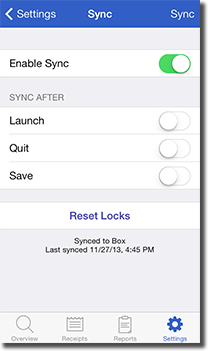
Tap the Sync button to manage sync options. Sync repositories may be created on Box, Dropbox, or Google Drive. Receipts uses a custom locking mechanism to prevent multiple clients from trying to sync at the same time. All receipts (with attachments), budgets, accounts, categories, repeats, fields, and most other settings are synced. The Sync After section specifies when Receipts should sync to the repository. Enable Launch to sync after app launch (or switching from the background), Quit to sync after the app exits (or is moved to the background), and/or Save to sync whenever a receipt is added/edited. Sync may be manually initiated at any time by tapping the Sync button on the top right. Tap the Reset Locks button if a lock was not updated correctly (due to another client exit/crash) and is preventing access to the repository. Note that resetting locks could corrupt the sync repository if another client is currently syncing. Note that if sync is enabled, new receipts are not assigned receipt numbers until they have been synced. Also, if a client has updated a receipt that has also changed on the server, the client version of the receipt is uploaded.

Tap Import to import receipts (CSV) and attachments. File column headers are listed on the left with matching fields listed on the right. Each column header may be matched to a field in Receipts or not imported. Select a column to modify its settings. Enable Import to import the column, select the Field to import to, and specify any other field settings (if applicable). Total fields include a Unit setting for specifying the total unit. Date fields include a Format setting for specifying the date format. The date format must follow conventions specified by the Unicode Technical Standard #35. Attachment fields include a Folder setting for specifying which folder to use for the attachments. Once the settings are configured, tap Parse to display the receipt list. Select which receipts to import from the receipt list by selecting the circle on the left side. By default, Receipts will automatically select any new receipts. Tap Import to import the receipts.

Tap Export to export receipts (CSV) and attachments. Filter which receipts to include by selecting the account, category, active state, and interval. Select the receipt fields to include and reorder them by dragging the icon to the right of each field. Enable the Data switch to include the export file and the Photos, Voice Memos, and Attachments switches to include various attachment types.

Save Backup and Restore Backup allow you to save and restore backups to a variety of destinations including email, iTunes File Sharing, WiFi, other devices, other apps, iCloud, Box, CloudApp, Dropbox, Evernote, and Google Drive. The backup includes all receipts, attachments, and application settings (except for service account details). Restoring a backup will replace all existing receipts and settings.

  • To restore a backup from an email, open Mail, select the email, and tap and hold the backup file until the Open sheet appears. Select Receipts from the list of apps. Note that backup files can quickly become very large (especially with attachments) and most email providers limit messages to around 5-10 MB.
  • To use iTunes File Sharing, follow the instructions above in Reports but use the Add... button instead of Save To... to upload the backup file from your computer to the device.
  • Restoring a backup using WiFi requires both the device and computer to be connected to the same WiFi network. Open the URL in a browser on your computer and select the backup to restore.
  • To save/restore a backup to another device, first make sure both devices are connected to the same WiFi network. Tap Save Backup on the source device and Restore Backup on the destination device. Tap the name of the device to connect to from the destination device. The data will be transferred over the WiFi connection and then restored on the destination device.
  • To restore a backup from another app, tap the file and open it in Receipts. Receipts will recognize the file type and display an alert to authorize restoring the backup.
  • Selecting iCloud, Box, CloudApp, Dropbox, Evernote, or Google Drive will first download a list of available backups from the default folder (if applicable) from the service. Select the file to restore. Note that backups can be very large files and it can take significant time to save or restore to a web service. Receipts supports completing uploads and downloads in the background.
Tap Reset to reset all previous text values, delete all receipt attachments, delete all receipts, or reset Receipts back to its original state. If a passcode is set, it must be entered before the reset.